
SSO ID Login
Having trouble with your Rajasthan SSO ID login? You’re not alone. Logging in to your SSO ID takes less than a minute once you know the right steps. This guide covers web login, mobile app login, and fixes for the most common errors people run into.
The login screen shows multiple options. Here’s which one to pick based on how you registered:
| You want to log in with | Choose this option |
|---|---|
| Your SSO ID and password | SSO ID / Username |
| Your Jan Aadhaar number | Jan Aadhaar |
| Google account | |
| DigiLocker | DigiLocker |
| Bhamashah card | Bhamashah |
- Open your browser and visit the official Rajasthan SSO login page using the button below, then click on the Login option on the homepage.
- Enter your SSO ID or registered mobile number in the username field, then type your password carefully in password field and make sure there are no typing mistakes.
- Fill in the captcha code exactly as shown on the screen, as this step is required to continue.
- After that, you may receive a verification code on your registered mobile number or email, so enter the OTP to proceed.
- Once everything is verified, click on the Login button and you will be redirected to your SSO dashboard.
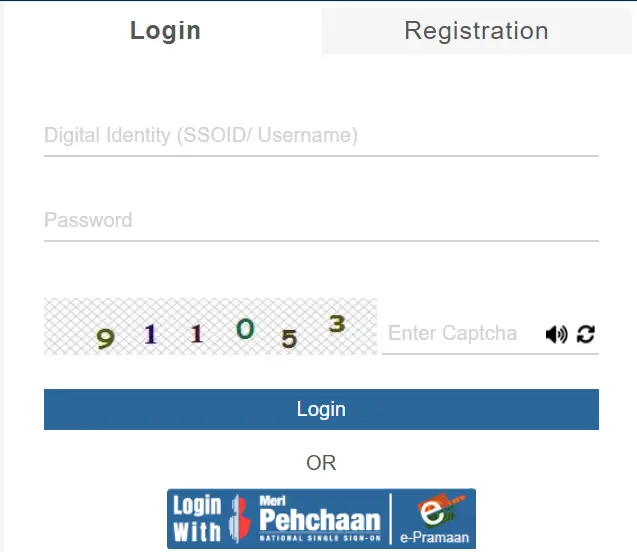
If you don’t have an SSO ID rajasthan account yet then you need to register an SSO ID account first, and only then you can log in.
SSO ID Login via App
Follow the steps below to download and log in via the SSO Raj App:
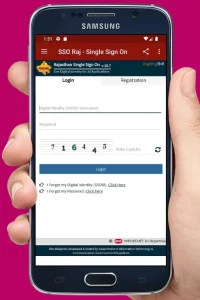
- Download the official SSO Raj app from the Play Store or App Store, then open the app and tap on the Login button to begin.
- Enter your SSO ID and password in the given fields, making sure the details are correct before moving ahead.
- Complete the captcha verification by typing the code shown on your screen, then tap on Login.
- You will receive a verification code on your registered mobile number or email, so enter the code to continue.
- Finally, tap on Submit and you will be logged into your account and taken to your SSO dashboard on mobile.
SSO ID Login Rajasthan Merge Process
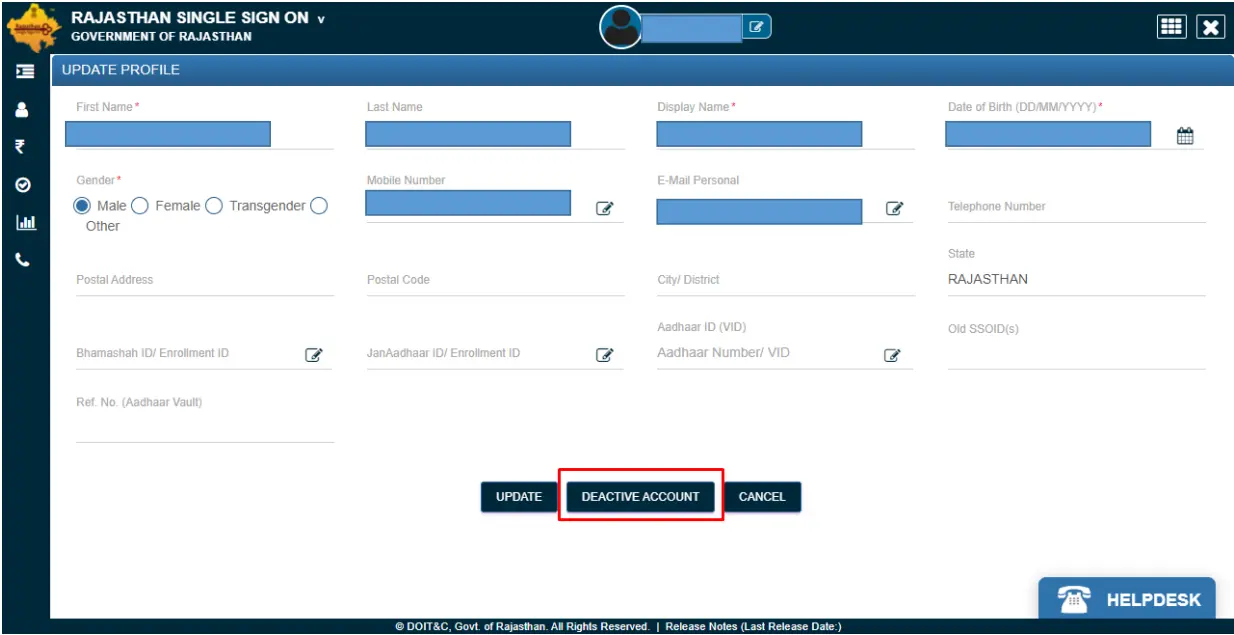
Sometimes people create more than one SSO ID by mistake. Don’t worry, if you created more than one SSO ID by mistake, here’s how to merge them
- Login to the SSO Portal: Go to the official portal and sign in with your SSO ID and password.
- Open Profile Settings: Once logged in, click Profile Settings on the left side menu.
- Choose “Deactivate Account”: Select the “Deactivate Account” option. Don’t worry, as you’re not deleting your main ID, you’re only starting the merge process.
- Verify Mobile Number: Enter your registered mobile number, and you’ll receive an OTP. Now type it in to confirm it’s really you.
- Enter the ID to Keep: On the next screen, enter the active SSO ID you want to keep as your single login.
- Confirm & Merge: Click on the Merge Accounts button. This tells the system to combine your old IDs into the one you chose.
- Start Using Your Single ID: After a moment, you’ll see a confirmation. Now you can access all services with just that one SSO ID, so no more confusion ahead.
Troubleshooting Login Issues
Having trouble logging into your SSO ID account? Don’t worry, this happens to a lot of users. Most issues are small and you can fix them in a few minutes. If your login is not working, check these common problems below and try the fix.
Wrong username or password
OTP not received
Website not opening or loading slowly
Account Locked After Failed Attempts
Tip: Always use the correct login option (Citizen, Udyog, or Government Employee). Choosing the wrong type can cause login errors.
Frequently Asked Questions
Final Words
Logged in successfully? Head straight to your dashboard and find the service you need. Still stuck? Call 0141-5153222 or walk into any eMitra center near you and they’ll help you in person. Stay safe and always log out after use, especially on shared devices.